

# Load the lterdatasampler package
library(lterdatasampler)

# Load the fiddler crab dataset
data(pie_crab)Planning the Work
As your project work has advanced, your group may find that it’s useful to articulate specific sub-goals or desired products. This module will cover some ways of identifying those outcomes and the tasks that are prerequisite to those ends. We’ll also discuss how you might go about “harmonizing” (i.e., standardizing and–possibly–combining) the data you have found and what initial exploratory steps might be useful.
Outline Your Analysis
Once the team has settled on a question and specific set of processes to explore or test, it’s worth sketching out the steps in your analysis. By making the inputs, processing, and outputs of each step explicit, you’ll identify needed data sooner and avoid (some) backtracking.
The process of building an explicit analysis description as a team can quickly reveal mismatches in team members’ mental models and uncover hidden assumptions. Making those (often disciplinary) differences visible early can mitigate some of the biggest risks of interdisciplinary research and also offer a way into the most novel insights. A well-structured analysis plan can also be a touchstone to return to throughout the life of your project, keeping the team on-track and avoiding mission creep.
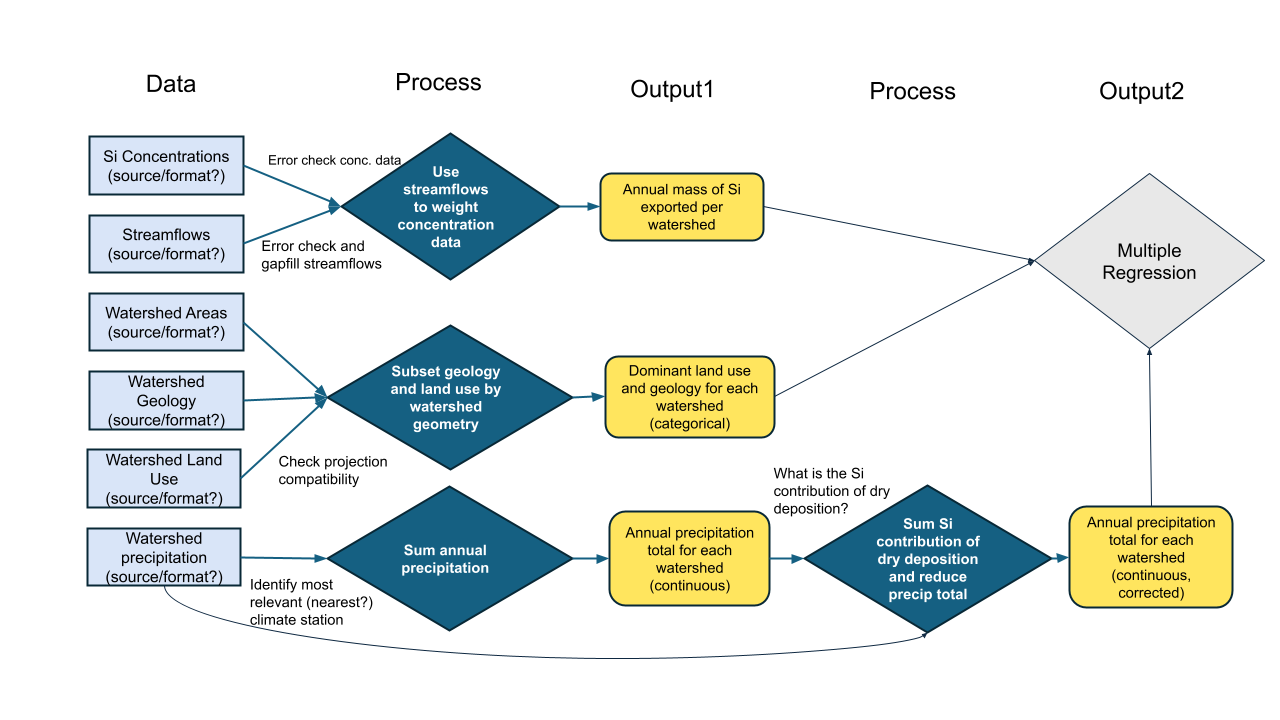
Making a Workflow Plan
Before you start actually developing your data workflow (or early in the development process), it is a good idea to develop a plan for what data manipulation needs to be done. Just like with visualization, it can be helpful to literally sketch out this plan so that you think through the major points in your data pipeline before beginning to write code that turns out to not be directly related to your core priorities. Consider the discussion below for some leading questions that may help you articulate your group’s plan for your data.
Harmonizing Data
For the purposes of SSECR, we’ll define “harmonization” as the process of combining separate primary data objects into one object. This includes things like synonymizing columns, or changing data format to support combination. This excludes quality control steps–even those that are undertaken before harmonization begins.
Data harmonization is an interesting topic in that it is vital for synthesis projects but only very rarely relevant for primary research. Synthesis projects must reckon with the data choices made by each team of original data collectors. These collectors may or may not have recorded their judgment calls (or indeed, any metadata) but before synthesis work can be meaningfully done these independent datasets must be made comparable to one another and combined.
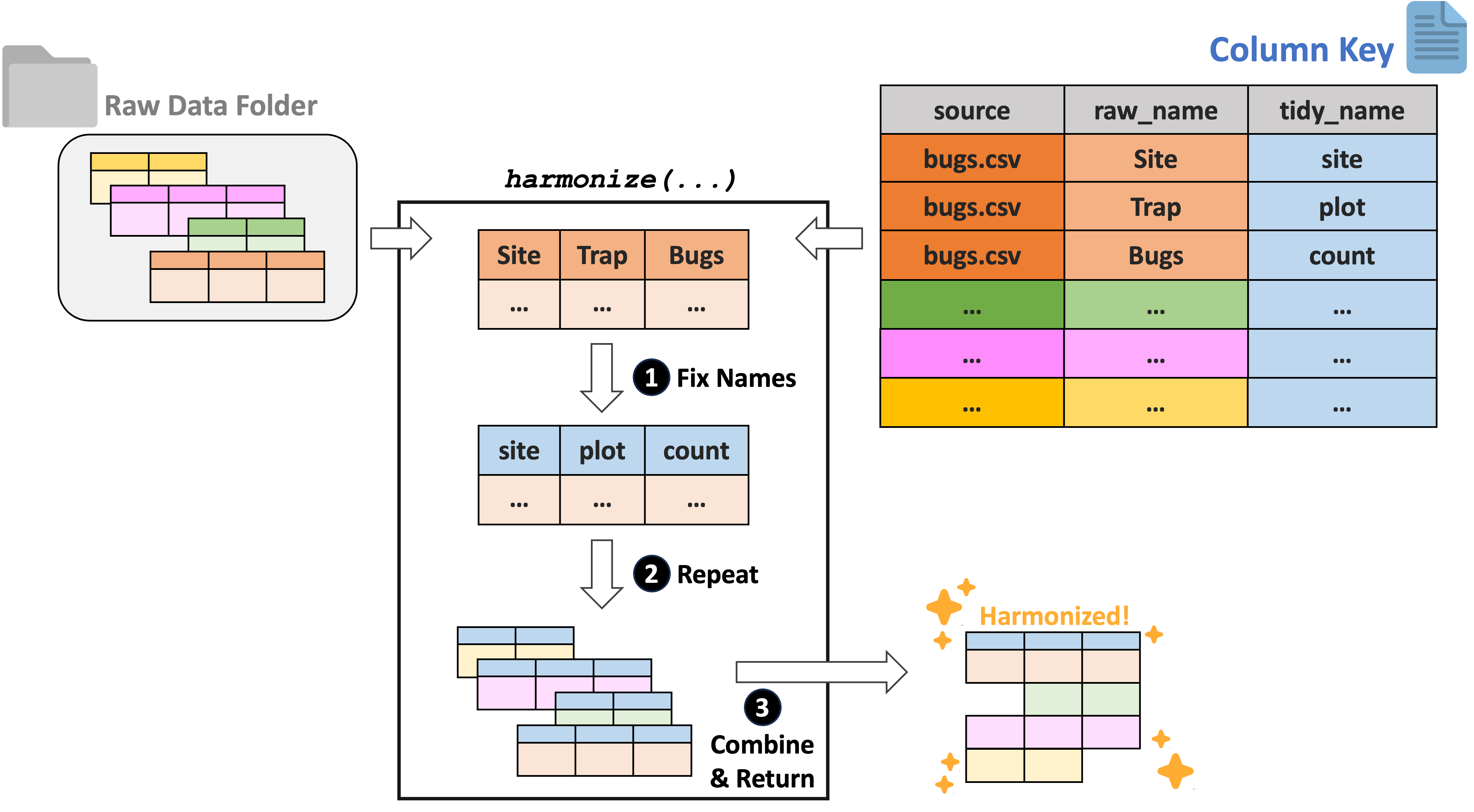
For tabular data, we recommend using the ltertools R package to perform any needed harmonization. This package relies on a “column key” to translate the original column names into equivalents that apply across all datasets. Users can generate this column key however they would like but Google Sheets is a strong option as it allows multiple synthesis team members to simultaneously work on filling in the needed bits of the key. If you already have a set of files locally, ltertools does offer a begin_key function that creates the first two required columns in the column key.
The column key requires three columns:
- “source” – Name of the raw file
- “raw_name” – Name of all raw columns in that file to be synonymized
- “tidy_name” – New name for each raw column that should be carried to the harmonized data
Note that any raw names either not included in the column key or that lack a tidy name equivalent will be excluded from the final data object. For more information, consult the ltertools package vignette. For convenience, we’re attaching the visual diagram of this method of harmonization from the package vignette.
Exploring the Data
For the purposes of SSECR, we’ll define “wrangling” as all modifications to a single data object meant to create a single, analysis-ready ‘tidy’ data object. This includes quality control, unit conversions, and data ‘shape’ changes to name a few. Note that attaching ancillary data to your primary data object (e.g., attaching temperature data to a dataset on plant species composition) also falls into this category!
Data wrangling is a huge subject that covers a wide range of topics. That said, the first step of most–if not all–wrangling is simply exploring your data! To begin, we’ll load a Plum Island Ecosystems fiddler crab dataset from the lterdatasampler R package.
Before beginning any code operations, it’s important to get a sense for the data. Characteristics like the dimensions of the dataset, the column names, and the type of information stored in each column are all crucial pre-requisites to knowing what tools can or should be used on the data.
Checking the data structure is one way of getting a lot of this high-level information.
# Check dataset structure
str(pie_crab)
Classes 'tbl_df', 'tbl' and 'data.frame': 392 obs. of 9 variables:
$ date : Date, format: "2016-07-24" "2016-07-24" ...
$ latitude : num 30 30 30 30 30 30 30 30 30 30 ...
$ site : chr "GTM" "GTM" "GTM" "GTM" ...
$ size : num 12.4 14.2 14.5 12.9 12.4 ...
$ air_temp : num 21.8 21.8 21.8 21.8 21.8 ...
$ air_temp_sd : num 6.39 6.39 6.39 6.39 6.39 ...
$ water_temp : num 24.5 24.5 24.5 24.5 24.5 ...
$ water_temp_sd: num 6.12 6.12 6.12 6.12 6.12 ...
$ name : chr "Guana Tolomoto Matanzas NERR" "Guana Tolomoto Matanzas NERR" "Guana Tolomoto Matanzas NERR" "Guana Tolomoto Matanzas NERR" ...For data that are primarily numeric, you may find data summary functions to be valuable. Note that most functions of this type do not provide useful information on text columns so you’ll need to find that information with different methods.
# Get a simple summary of the data
summary(pie_crab)
date latitude site size
Min. :2016-07-24 Min. :30.00 Length:392 Min. : 6.64
1st Qu.:2016-07-28 1st Qu.:34.00 Class :character 1st Qu.:12.02
Median :2016-08-01 Median :39.10 Mode :character Median :14.44
Mean :2016-08-02 Mean :37.69 Mean :14.66
3rd Qu.:2016-08-09 3rd Qu.:41.60 3rd Qu.:17.34
Max. :2016-08-13 Max. :42.70 Max. :23.43
air_temp air_temp_sd water_temp water_temp_sd
Min. :10.29 Min. :6.391 Min. :13.98 Min. :4.838
1st Qu.:12.05 1st Qu.:8.110 1st Qu.:14.33 1st Qu.:6.567
Median :13.93 Median :8.410 Median :17.50 Median :6.998
Mean :15.20 Mean :8.654 Mean :17.65 Mean :7.252
3rd Qu.:18.63 3rd Qu.:9.483 3rd Qu.:20.54 3rd Qu.:7.865
Max. :21.79 Max. :9.965 Max. :24.50 Max. :9.121
name
Length:392
Class :character
Mode :character
For text columns it can sometimes be useful to simply look at the unique entries in a given column and sort them alphabetically for ease of parsing.
# Look at the sites included in the data
sort(unique(pie_crab$site))
[1] "BC" "CC" "CT" "DB" "GTM" "JC" "NB" "NIB" "PIE" "RC" "SI" "VCR"
[13] "ZI" For those of you who think more visually, a histogram can be a nice way of examining numeric data. There are simple histogram functions in the ‘base’ packages of most programming languages but it can sometimes be worth it to use those from special libraries because they can often convey additional detail.
# Load the psych library
library(psych)

# Get the histogram of crab "size" (carapace width in mm)
psych::multi.hist(pie_crab$size)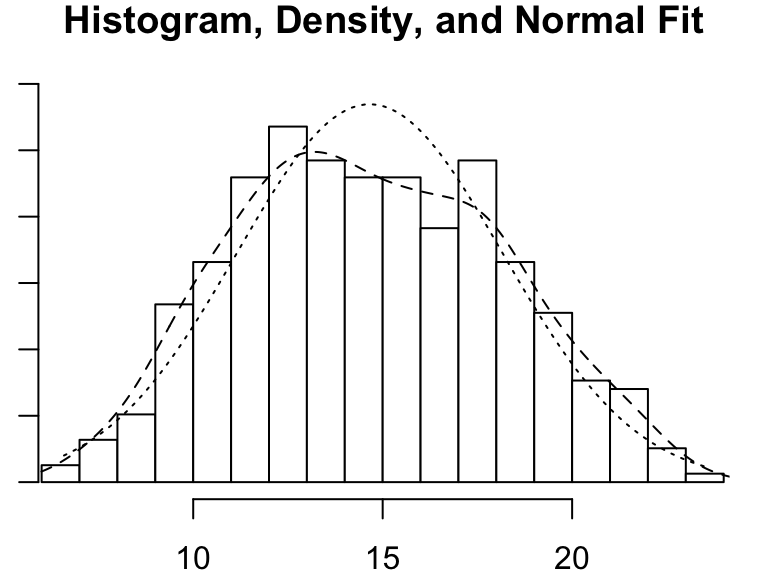
Quality Control
You may have encountered the phrase “QA/QC” (Quality Assurance / Quality Control) in relation to data cleaning. Technically, quality assurance only encapsulates preventative measures for reducing errors. One example of QA would be using a template for field datasheets because using standard fields reduces the risk that data are recorded inconsistently and/or incompletely. Quality control on the other hand refers to all steps taken to resolve errors after data are collected. Any code that you write to fix typos or remove outliers from a dataset falls under the umbrella of QC.
In synthesis work, QA is only very rarely an option. You’ll mostly be working with datasets that have already been collected and attempting to handle any issues post hoc which means the vast majority of data wrangling operations will be quality control methods. These QC efforts can be incredibly time-consuming so using a programming language (like R or Python) is a dramatic improvement over manually looking through the data using Microsoft Excel or other programs like it.
QC Considerations
The datasets you gather for your synthesis project will likely have a multitude of issues you’ll need to resolve before the data are ready for visualization or analysis. Some of these issues may be clearly identified in that datasets’ metadata or apply to all datasets but it is good practice to make a thorough QC effort as early as is feasible. Keep the following data issues and/or checks in mind as we cover code tools that may be useful in this context later in the module.
- Verify taxonomic classifications against authorities
- Handle missing data
- Some datasets will use a code to indicate missing values (likely identified in their metadata) while others will just have empty cells
- Check for unreasonable values / outliers
- Can use conditionals to create “flags” for these values or just filter them out
- Check geographic coordinates’ reasonability
- E.g., western hemisphere coordinates may lack the minus sign
- Check date formatting
- I.e., if all sampling is done in the first week of each month it can be difficult to say whether a given date is formatted as MM/DD/YY or DD/MM/YY
- Consider spatial and temporal granularity among datasets
- You may need to aggregate data from separate studies in different ways to ensure that the data are directly comparable across all of the data you gather
- Handle duplicate data / rows
Number Checking
When you read in a dataset and a column that should be numeric is instead read in as a character, it can be a sign that there are malformed numbers lurking in the background. Checking for and resolving these non-numbers is preferable to simply coercing the column into being numeric because the latter method typically changes those values to ‘NA’ where a human might be able to deduce the true number each value ‘should be.’
# Load the supportR package
library(supportR)
# Create an example dataset with non-numbers in ideally numeric columns
fish_ct <- data.frame("species" = c("salmon", "bass", "halibut", "moray eel"),
"count" = c(12, "14x", "_23", 1))
# Check for malformed numbers in column(s) that should be numeric
bad_nums <- supportR::num_check(data = fish_ct, col = "count")For 'count', 2 non-numbers identified: '14x' | '_23'In the above example, “14x” would be coerced to NA if you simply force the column without checking but you could drop the “x” with text replacing methods once you use tools like this one to flag it for your attention.
Text Replacement
One of the simpler ways of handling text issues is just to replace a string with another string. Most programming languages support this functionality.
# Use pattern match/replace to simplify problem entries
fish_ct$count <- gsub(pattern = "x|_", replacement = "", x = fish_ct$count)

# Check that they are fixed
bad_nums <- supportR::num_check(data = fish_ct, col = "count")
For 'count', no non-numeric values identified.The vertical line in the gsub example above lets us search for (and replace) multiple patterns. Note however that while you can search for many patterns at once, only a single replacement value can be provided with this function.
Regular Expressions
You may sometimes want to perform more generic string matching where you don’t necessarily know–or want to list–all possible strings to find and replace. For instance, you may want remove any letter in a numeric column or find and replace numbers with some sort of text note. “Regular expressions” are how programmers specify these generic matches and using them can be a nice way of streamlining code.
# Make a test vector
regex_vec <- c("hello", "123", "goodbye", "456")

# Find all numbers and replace with the letter X
gsub(pattern = "[[:digit:]]", replacement = "x", x = regex_vec)
[1] "hello" "xxx" "goodbye" "xxx" # Replace any number of letters with only a single 0
gsub(pattern = "[[:alpha:]]+", replacement = "0", x = regex_vec)[1] "0" "123" "0" "456"The stringr package cheatsheet has a really nice list of regular expression options that you may find valuable if you want to delve deeper on this topic. Scroll to the second page of the PDF to see the most relevant parts.