

Working Collaboratively
At this point, you may be holding some discussions among the team that could be challenging. Today we’ll give you some tools on understanding team dynamics and navigating conflict (hopefully before you need them) then we’ll circle back in later classes to provide some broader context. Similarly, you are probably already writing preliminary code–or at least such code is clearly approaching in your near future. We’ll discuss some facets of how that code can be made as reproducible as possible so that even these ‘rough draft’ code files are interpretable by others.
Collaboration Reflection
Science of Team Science
Research in management, organizational behavior, and psychology has long focused on the performance of teams–often in military, healthcare and industrial contexts. Scientific teams have particular goals, leadership, and incentives that differ from the business and military contexts. As collaboration in science increased, the need for empirical research into the workings of science teams became apparent and the field of “science of team science” or SciTS was launched. A few key moments:
2006 conference at the National Institutes of Health (Stokols et al. 2008)
National Academies studies in 2015 (Enhancing the Effectiveness of Team Science, NRC)
2025 (Research and Application in Team Science, NASEM) assembled the existing evidence base into how team composition, coordination, support, and organizational context could improve outcomes for science teams.
In this course, we’re not aiming to review the whole field, but to provide a framework for thinking about how your team is functioning and to identify some key team science practices that are supported by both research and practical experience.
Predictable Team Trajectory
Creating a team is not just a matter of putting a bunch of people in a room together. Social scientists have identified consistent patterns in the evolution of teams (Tuckman 1965, Tuckman and Jenson 1977). Knowing that this is a process nearly every team experiences may make it (at least somewhat) more comfortable.
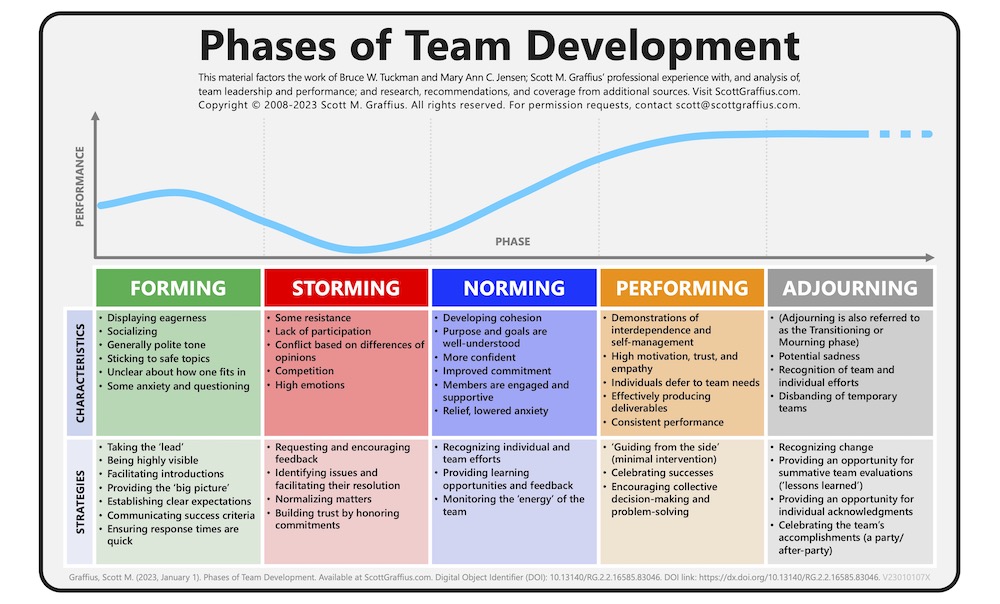
Teams that are assembled from across organizations must agree to adopt a common set of norms and processes in order to progress from storming to performing. This can feel like a detour from the science, but a modest early investment in developing shared practices pays off in the long run.
Benefits of Enabling Full Participation
Creating the conditions for all team members to feel welcome and able to fully participate advances diversity, equity, and inclusion in science. As we will learn, it also has instrumental benefits, as diverse teams have been shown to be more productive and to produce higher impact results than less diverse teams. In part, that productivity can be attributed to the ability of the group to elicit and work with novel ideas and approaches, allowing more innovative analysis and problem solving.
Facilitating equitable participation also helps to unleash the full capacity of a team to get things done. Too often, potential contributors opt out of offering their skills and talents to a collaborative endeavor because they feel undervalued or unclear on how to contribute. It might not feel worth their time to try to assert an idea or opinion when it doesn’t feel welcome. A process that creates opportunities for everyone to engage and feel included can help avoid this situation.
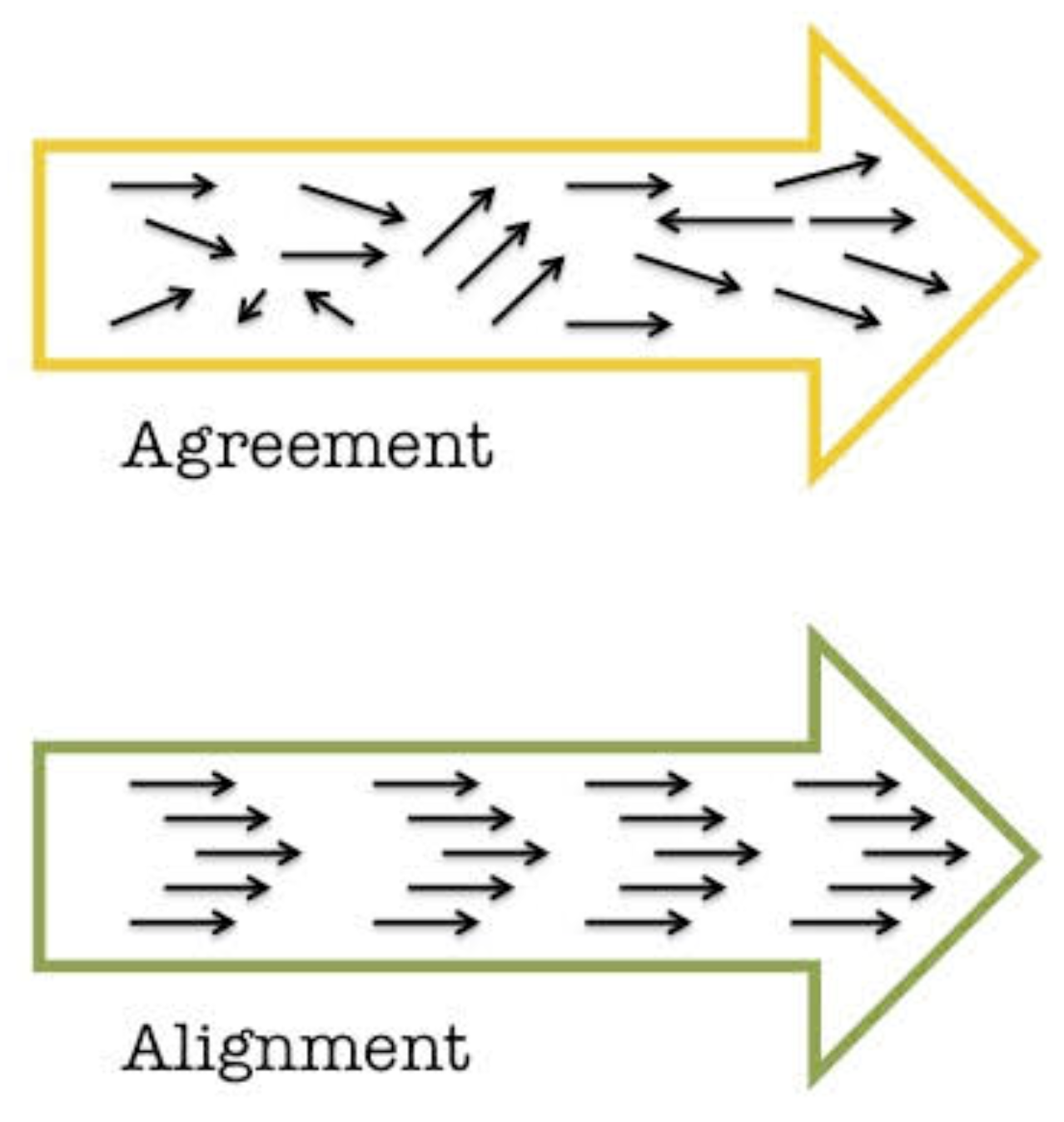
Finally, when the time comes for decision making, effective facilitation can ensure that the full range of questions, opinions, and concerns has been surfaced and weighed before the group makes a decision. This is critical. If you move forward with surface-level agreement, but without true alignment, commitment to the decision is likely to erode over time.
Navigating Conflict
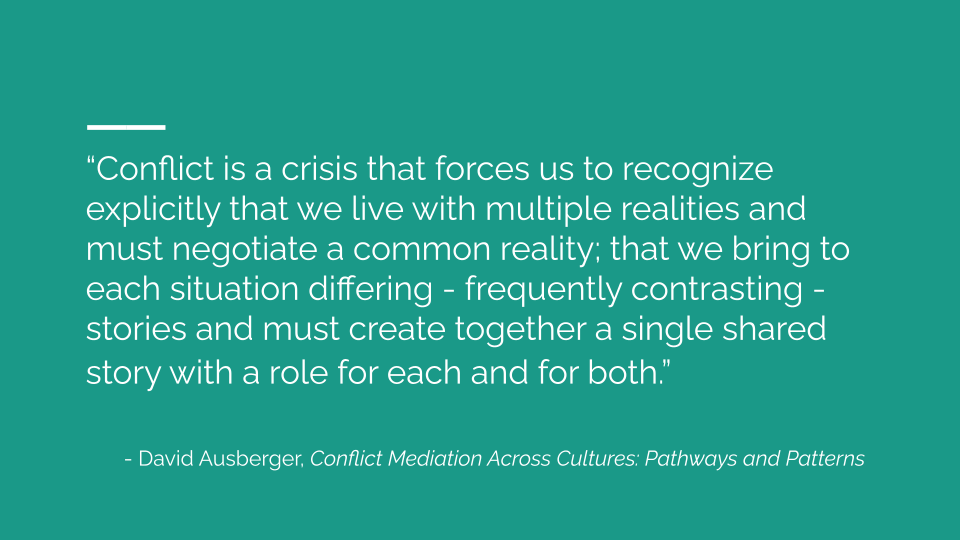
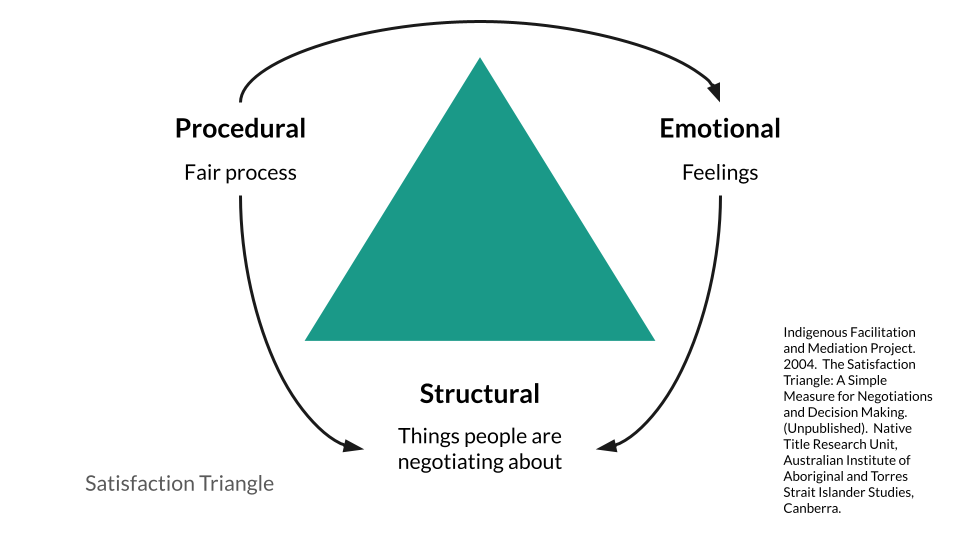
All those diverse perspectives will inevitably lead to some degree of conflict, which can be stressful and intimidating. But identifying the components of a conflict and understanding what is at stake for each party can reveal unexpected solutions. In any event, ignoring conflict will only make it more difficult to resolve later. Expect and plan for conflict with the following approaches.
- Develop working agreements (code of conduct + principles)
- Decide how conflicts will be handled together; write down your plan
- Have a backup plan / exit strategy
- Review the policy and how it’s working regularly; make changes
- Know what systems and supports are available to you and use them.
- Build capacity for productive struggle and generative conflict with low stakes practice.
In spite of your best efforts, conflicts will still arise. The satisfaction triangle is a simple and useful approach to identifying the elements contributing to conflicts for each of the participants. When you notice a conflict surfacing, try to work through it using the following steps:
- Acknowledge the conflict.
- Commit to a joint problem solving process.
- Describe your view of the conflict and its impact on you, focusing on specific events and observable behaviors. Ask for their view. Really listen.
- Identify areas of agreement and disagreement. State preferences and requests clearly. Together, prioritize what to address first.
- Focus on the future with positive intent. Work together to find a solution. Keep communication open. Tend relationships.
Ensuring Equitable Access to Participation
To tap diverse perspectives and catalyze productivity and creative problem-solving, we need to design meetings (and projects) so everyone can participate fully, rather than just a few. When tackling complex challenges, voices from the edge are often critical to uncovering new insights and approaches. Democratizing participation doesn’t have to be all about controlling the dominant voices in a group; with thoughtful planning and some simple tools, you can design any conversation so that everyone can contribute.
A few simple techniques can help:
- Mix up the format, e.g., combining silent reflection, round robin, breakout groups, plenary, and/or “liberating structures” (more on these below)
- Offer different channels for information sharing - verbal, nonverbal, written, visual, informal, formal
- Track and stack who wants to speak
- Invite, amplify, and credit “quieter” voices
- Use active listening - reflect back what you think you are hearing in simple terms and check your assumptions regularly
Be creative and empathetic when you design your agenda. Think about your participants and what is going to help all of them participate fully and creatively. Beyond the thinking preferences, you may also want to consider these other dimensions of diversity when planning your process design and facilitation:
- Introverts vs. extroverts
- Visual, auditory and kinesthetic learners
- Disciplinary diversity
- Career stage
- Language
- Time zone (for geographically distributed teams)
Reproducible Coding
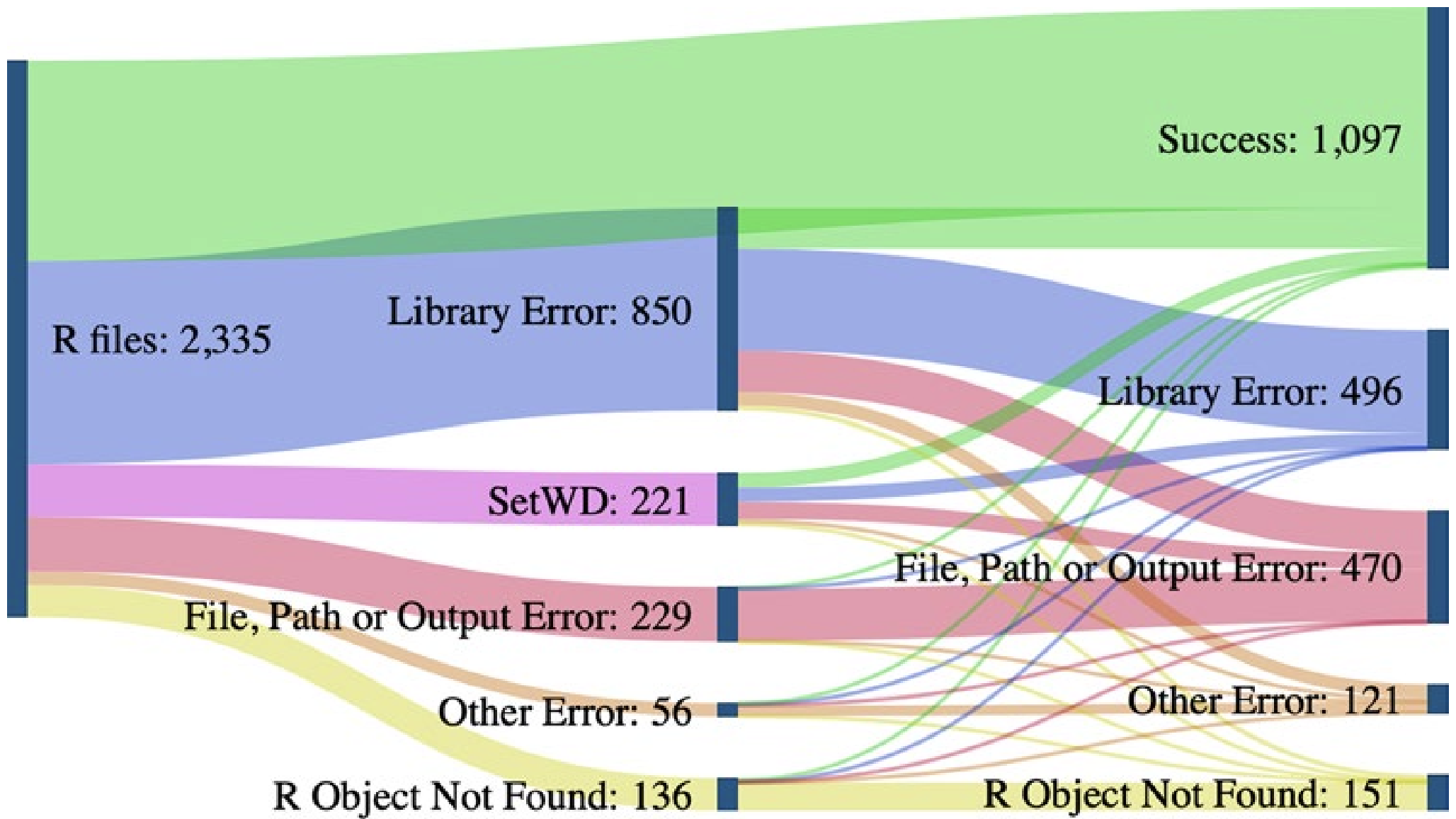
Doing your data operations with scripts is more reproducible than doing those operations without a programming language (i.e., with Microsoft Excel, Google Sheets, etc.). However, scripts are often written in a way that is not reproducible. A recent study aiming to run 2,000 projects’ worth of R code found that 74% of the associated R files failed to complete without error (Trisovic et al. 2022). Many of those errors involve coding practices that hinder reproducibility but are easily preventable by the original code authors.
When your scripts are reproducibly-written you will reap significant benefits! These include:
- Easier to return to your code after having set it down for weeks/months
- Less verbal explanation needed when collaborating or onboarding new team members
- Simpler to sharing methods for external result validation
- In cases where you’re developing a novel method or workflow, structuring your code reproducibly will increase the odds that someone outside of your team will adopt your strategy
Code and the Stages of Data
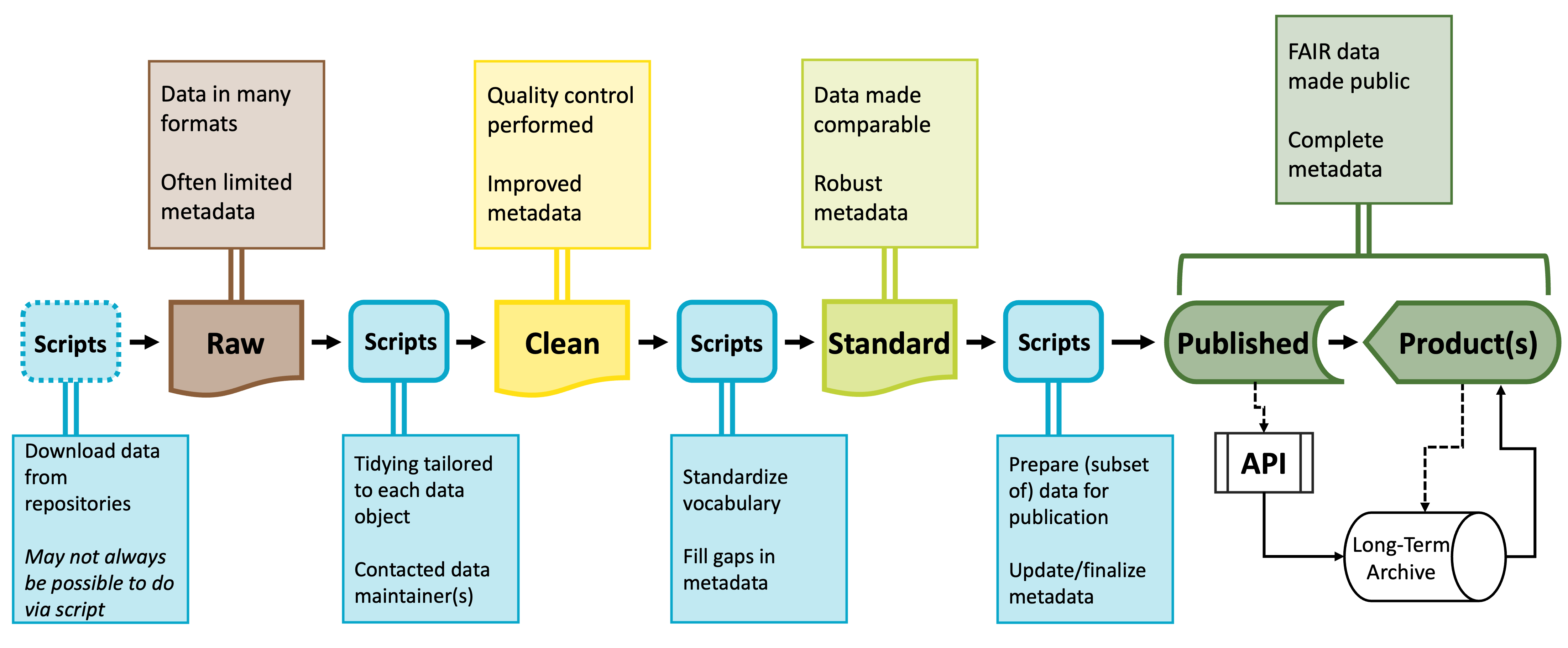
You’ll likely need a number of scripts to accomplish the different stages of preparing a synthesized dataset. All of these scripts together are often called a “workflow.” Each script will meet a specific need and its outputs will be the inputs of the next script. These intermediary data products are sometimes useful in and of themselves and tend to occur and predictable points that exist in most code workflows.
Raw data will be parsed into cleaned data–often using idiosyncratic or dataset-specific scripts–which is then processed into standardized data which can then be further parsed into published data products. Because this process results in potentially many scripts, coding reproducibly is vital to making this workflow intuitive and easy to maintain.
You don’t necessarily need to follow all of the guidelines described below but in general, the more of these guidelines you follow the easier it will be to make needed edits, onboard new team members, maintain the workflow in the long term, and generally maximize the value of your work to yourself and others!
Packages, Namespacing, and Software Versions
An under-appreciated facet of reproducible coding is a record of what code packages are used in a particular script and the version number of those packages. Packages evolve over time and code that worked when using one version of a given package may not work for future versions of that same package. Perpetually updating your code to work with the latest package versions is not sustainable but recording key information can help users set up the code environment that does work for your project.
Load Libraries Explicitly
It is important to load libraries at the start of every script. In some languages (like Python) this step is required but in others (like R) this step is technically “optional” but disastrous to skip. It is safe to skip including the installation step in your code because the library step should tell code-literate users which packages they need to install.
For instance you might begin each script with something like:
# Load needed libraries
library(dplyr); library(magrittr); library(ggplot2)

# Get to actual work
. . .
In R the semicolon allows you to put multiple code operations in the same line of the script. Listing the needed libraries in this way cuts down on the number of lines while still being precise about which packages are needed in the script.
If you are feeling generous you could use the librarian R package to install packages that are not yet installed and simultaneously load all needed libraries. Note that users would still need to install librarian itself but this at least limits possible errors to one location. This is done like so:
# Load `librarian` package
library(librarian)

# Install missing packages and load needed libraries
shelf(dplyr, magrittr, ggplot2)

# Get to actual work
. . .
Function Namespacing
It is also strongly recommended to “namespace” functions everywhere you use them. In R this is technically optional but it is a really good practice to adopt, particularly for functions that may appear in multiple packages with the same name but do very different operations depending on their source. In R the ‘namespacing operator’ is two colons.
# Use the `mutate` function from the `dplyr` package
dplyr::mutate(. . .)
An ancillary benefit of namespacing is that namespaced functions don’t need to have their respective libraries loaded. Still good practice to load the library though!
Package Versions
While working on a project you should use the latest version of every needed package. However, as you prepare to publish or otherwise publicize your code, you’ll need to record package versions. R provides the sessionInfo function (from the utils package included in “base” R) which neatly summarizes some high level facets of your code environment. Note that for this method to work you’ll need to actually run the library-loading steps of your scripts.
For more in-depth records of package versions and environment preservation–in R–you might also consider the renv package or the packrat package.
Script Organization
Every change to the data between the initial raw data and the finished product should be scripted. The ideal would be that you could hand someone your code and the starting data and have them be able to perfectly retrace your steps. This is not possible if you make unscripted modifications to the data at any point!
You may wish to break your scripted workflow into separate, modular files for ease of maintenance and/or revision. This is a good practice so long as each file fits clearly into a logical/thematic group (e.g., data cleaning versus analysis).
File Paths
When importing inputs or exporting outputs we need to specify “file paths”. These are the set of folders between where your project is ‘looking’ and where the input/output should come from/go. The figure from Trisovic et al. (2022) shows that file path and working directory errors are a substantial barrier to code that can be re-run in clean coding environments. Consider the following ways of specifying file paths from least to most reproducible.
Absolute Paths
The worst way of specifying a file path is to use the “absolute” file path. This is the path from the root of your computer to a given file. There are many issues here but the primary one is that absolute paths only work for one computer! Given that only one person can even run lines of code that use absolute paths, it’s not really worth specifying the other issues.
Example
# Read in bee community data
my_df <- read.csv(file = "~/Users/lyon/Documents/Grad School/Thesis (Chapter 1)/Data/bees.csv")
Manually Setting the Working Directory
Marginally better than using the absolute path is to set the working directory to some location. This may look neater than the absolute path option but it actually has the same point of failure: Both methods only work for one computer!
Example
# Set working directory
setwd(dir = "~/Users/lyon/Documents/Grad School/Thesis (Chapter 1)")

# Read in bee community data
my_df <- read.csv(file = "Data/bees.csv")
Relative Paths
Instead of using absolute paths or manually setting the working directory you can use “relative” file paths! Relative paths assume all project content lives in the same folder.
This is a safe assumption because it is the most fundamental tenet of reproducible project organization! The strength of relative paths is actually a serious contributing factor for why it is good practice to use a single folder.
Example
# Read in bee community data
my_df <- read.csv(file = "Data/bees.csv")- 1
- Parts of file path specific to each user are automatically recognized by the computer
Operating System-Flexible Relative Paths
The “better” example is nice but has a serious limitation: it hard coded the type of slash between file path elements. This means that only computers of the same operating system as the code author could run that line.
We can use functions to automatically detect and insert the correct slashes though!
Example
# Read in bee community data
my_df <- read.csv(file = file.path("Data", "bees.csv"))
Code Style
When it comes to code style, the same ‘rule of thumb’ applies here that applied to project organization: virtually any system will work so long as you (and your team) are consistent! That said, there are a few principles worth adopting if you have not already done so.
Use concise and descriptive object names
It can be difficult to balance these two imperatives but short object names are easier to re-type and visually track through a script. Descriptive object names on the other hand are useful because they help orient people reading the script to what the object contains.
Don’t be afraid of empty space!
Scripts are free to write regardless of the number of lines so do not feel as though there is a strict character limit you need to keep in mind. Cramped code is difficult to read and thus can be challenging to share with others or debug on your own. Inserting an empty line between coding lines can help break up sections of code and putting spaces before and after operators can make reading single lines much simpler.
Modifying Data
You should never edit raw data directly! If you do need to edit the raw data, use a script to make all needed edits and save the output of that script as a separate file. Editing the raw data directly without a script or using a script but overwriting the raw data are both incredibly risky operations because your create a file that “looks” like the raw data (and is likely documented as such) but differs from what others would have if they downloaded the ‘real’ raw data personally.
Code Comments
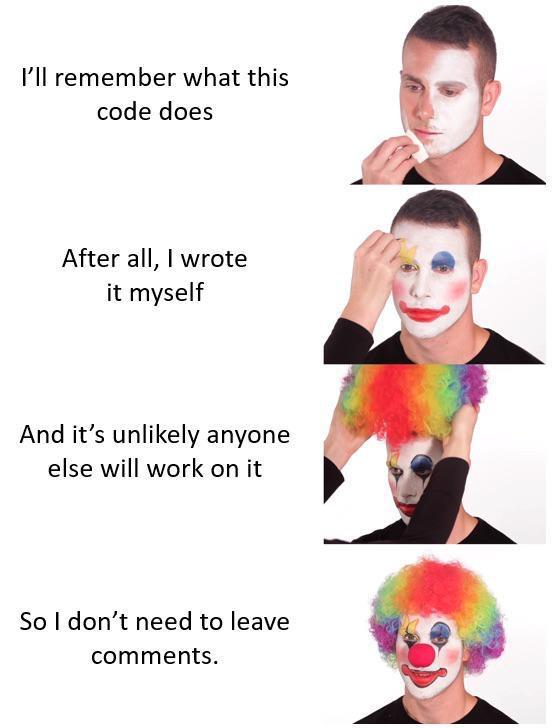
A “comment” in a script is a human readable, non-coding line that helps give context for the code. In R (and Python), comment lines start with a hashtag (#). Including comments is a low effort way of both (A) creating internal documentation for the script and (B) increasing the reproducibility of the script. It is difficult to include “too many” comments, so when in doubt: add more comments!
There are two major strategies for comments and either or both might make sense for your project.
“What” Comments
Comments describe what the code is doing.
- Benefits: allows team members to understand workflow without code literacy
- Risks: rationale for code not explicit
# Remove all pine trees from dataset
no_pine_df <- dplyr::filter(full_df, genus != "Pinus")
“Why” Comments
Comments describe rationale and/or context for code.
- Benefits: built-in documentation for team decisions
- Risks: assumes everyone can read code
# Cone-bearing plants are not comparable with other plants in dataset
no_pine_df <- dplyr::filter(full_df, genus != "Pinus")Consider Custom Functions
In most cases, duplicating code is not good practice. Such duplication risks introducing a typo in one copy but not the others. Additionally, if a decision is made later on that requires updating this section of code, you must remember to update each copy separately.
Instead of taking this copy/paste approach, you could consider writing a “custom” function that fits your purposes. All instances where you would have copied the code now invoke this same function. Any error is easily tracked to the single copy of the function and changes to that step of the workflow can be accomplished in a centralized location.
Function Recommendations
We have the following ‘rules of thumb’ for whether you should use a custom function:
- If a given operation is duplicated 3 or more times within a project, write a custom function
Functions written in this case can be extremely specific and–though documentation is always a good idea–can be a little lighter on documentation. Note that the reason you can reduce the emphasis on documentation is only because of the assumption that you won’t be sharing the function widely. If you do decide the function could be widely valuable you would need to add the needed documentation post hoc.
- Write functions defensively
When you write custom functions, it is really valuable to take the time to write them defensively. In this context, “defensively” means that you anticipate likely errors and write your own informative/human readable error messages. Let’s consider a simplified version of a function from the ltertools R package for calculating the coefficient of variation (CV).
The coefficient of variation is equal to the standard deviation divided by the mean. Fortunately, R provides functions for calculating both of these already and both expect numeric vectors. If either of those functions is given a non-number you get the following warning message: “In mean.default(x =”…“) : argument is not numeric or logical: returning NA”.
Someone with experience in R may be able to interpret this error but for many users this error message is completely opaque. In the function included below however we can see that there is a simpler, more human readable version of the error message and the function is stopped before it can ever reach the part of the code that would throw the warning message included above.
cv <- function(x){

  # Error out if x is not numeric
  if(is.numeric(x) != TRUE)
    stop("`x` must be numeric")

  # Calculate CV
  coef_var <- sd(x = x) / mean(x = x)

  return(coef_var) }
The key to defensive programming is to try to get functions to fail fast and fail informatively as soon as a problem is detected! This is easier to debug and understand for coders with a range of coding expertise and–for complex functions–can save a ton of useless processing time when failure is guaranteed at a later step.
- If a given operation is duplicated 3 or more times across projects, consider creating an R package
Creating an R package can definitely seem like a daunting task but duplication across projects carries the same weaknesses of excessive duplication within a project. However, when duplication is across projects, not even writing a custom function saves you because you need to duplicate that function’s script for each project that needs the tool.
Hadley Wickham and Jenny Bryan have written a free digital book on this subject that demystifies a lot of this process and may make you feel more confident to create your own R package if/when one is needed.
If you do take this path, you can simply install your package as you would any other in order to have access to the operations rather than creating duplicates by hand.